

Your Student ID Is Going Digital

Want seamless access to every gate and door on campus? Add your student ID to your phone's digital wallet in less than two minutes.

Students, We're making campus life smarter and simpler. Your new digital student ID can now be added to your phone's built-in wallet (Apple Wallet or Google Wallet), giving you fast and convenient access to campus services.
The digital student ID replaces your physical student card, which will no longer be valid once your digital ID has been issued. After all, why carry a plastic card when it's already on your phone?
Follow the steps below to get started.
Step 1: Open the Personal Area App
On the home screen, under Quick Links, tap the Student ID icon to begin.
Don't have the app yet?

Step 2: Upload a Photo or Take a Selfie
If you don't already have a photo saved in the system, you can upload one from your gallery or take a selfie directly through the app.
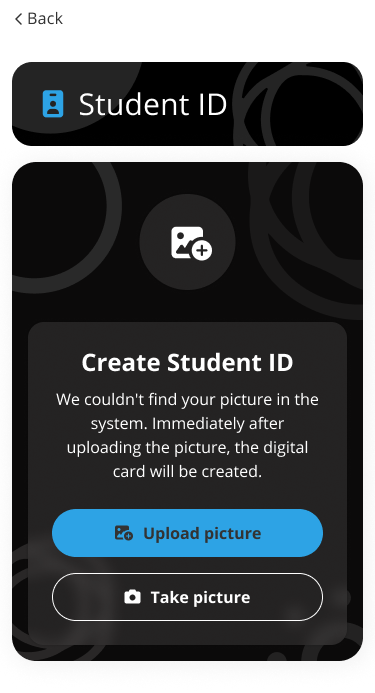
Step 3: Create Your Digital Student ID
Once your details have been approved, tap Create Wallet Card.
Your digital student ID will then be ready to add to your wallet.
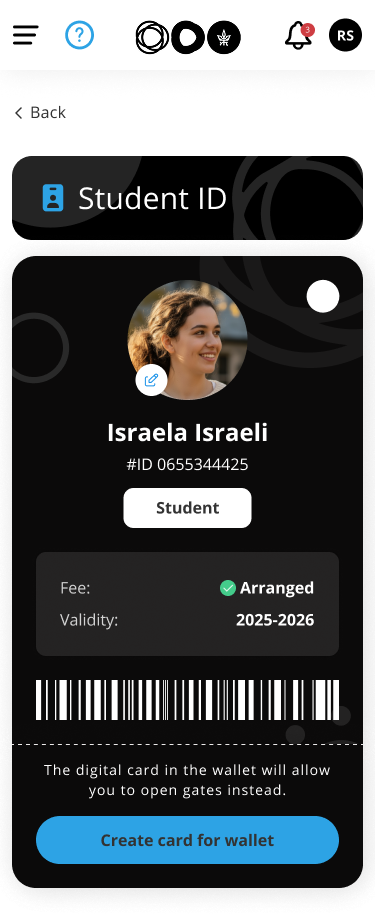
Step 4: Add It to Your Digital Wallet
Tap Add to Apple Wallet or Add to Google Wallet, depending on your device.
Within seconds, your student ID will appear in your digital wallet.
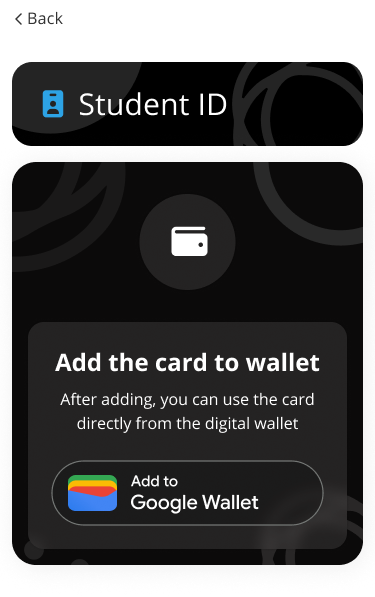
Add Card to Google Wallet
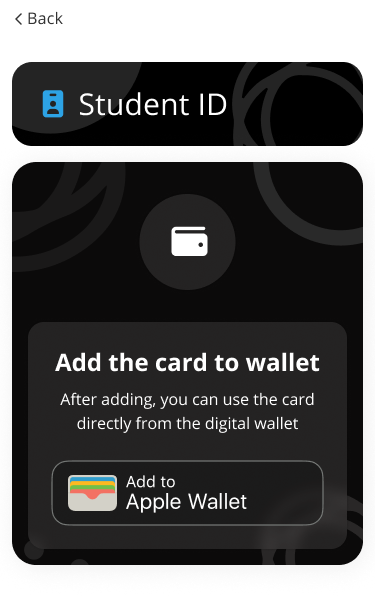
Add Card to Apple Wallet
Please Note
- Only the student ID stored in your digital wallet can be used with campus card readers. The ID displayed in the Personal Area app cannot be scanned.
- To enter campus, simply unlock your phone and hold it near the card reader.
- Both the student ID displayed in the Personal Area app and the version stored in your digital wallet serve as official university identification.